CSA Admin Support
Overview: The CSA Admin pipeline manages requests from account managers to hand tasks to CSA Team reps for completion. We have two processes in place, which are seperated into two workflows below:
Workflow 1
- GA Upload
- Excel Upload
- Budget Upload
Workflow 2
- Card Order
- Payment Requests
- Disputes
- Missing Payments
Scope: This SOP applies to all employees and departments throughout the business requesting support from the CSA Team.
Business Units:
Voly Yachting
Departments:
Implementation
Client Team
CSA Team
Adding a CSA Admin Ticket
Record Created
Request Task and Is more information required from the Ticket Owner
Process / QA stage
Is more support required from CSA Team
Step 1 - Add Ticket
Across all objects within HubSpot you are able to create tickets. You can create them whilst in other objects (example: from within a Client Hub record), where you will automatically associate the object from where the ticket was created, or from within the pipeline, where you will have to associate all other objects.a. from an associated object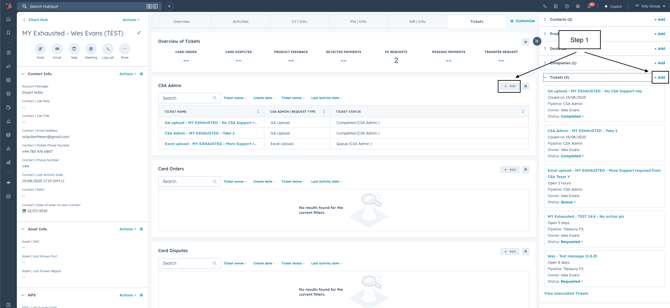
b. from within a pipeline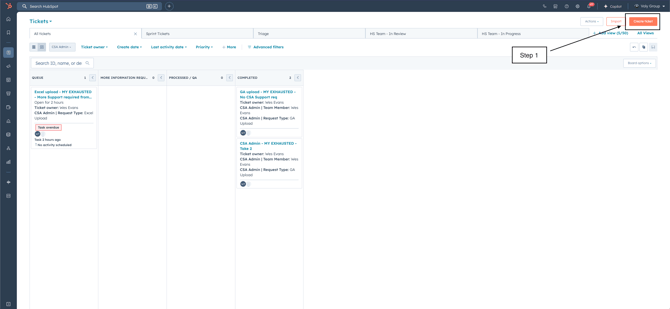
When selecting add+ or creating a ticket, you will get a pop-up similar to the below: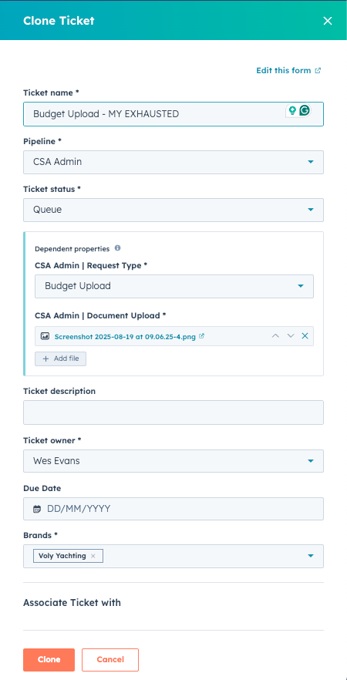
Ticket Name - Please use the Naming Convention support document when entering your Ticket name (example: GA Upload - MY EXHAUSTED)
Pipeline - CSA Admin
Ticket status - Queue
CSA Admin | Request Type:
- GA Upload (additional properties appear on the ticket once this option is chosen)
- Res. Type
- B&W
- Reverse Aspect
- Account Name & Site
- Excel Upload
- Budget Upload
CSA Admin | Document Upload - for each Request Type, you will be required to upload a document against this property.
Associations - When creating the Ticket, please make sure you associate the below object types:
- Contact
- Product Subscription
- Client Hub (to be included once Client Hub is active)
- Asset
Once you have selected and associated the above, the Create button will appear, click create!
Step 2 - Record CreationOnce a record has been created, it will sit within the Queue stage on the Ticket - CSA Pipeline. An internal email notification will be sent to the accountmanagers@voly.com email address notifying them of the request type and a task will also be created within the CSA | Admin Task Queue:
Email notification
"Hello CSA Team,
You have received a new support ticket from {Ticket Owner}, requesting for a {Request Type} for {Asset Name}.
Please assign a CSA Team member to this ticket, by entering your name within the CSA Admin | Team Member property.
Need help? - link to this article!
Thanks"
Task Created:
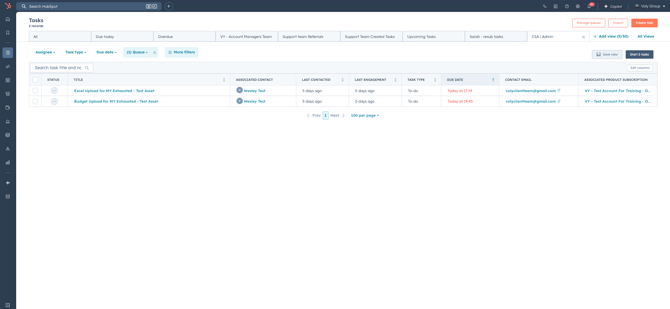
Request Task and Is more information required from the Ticket Owner?
Once you are ready to start the request, asign yourself to the Ticket by updating the CSA Admin | Team Member property.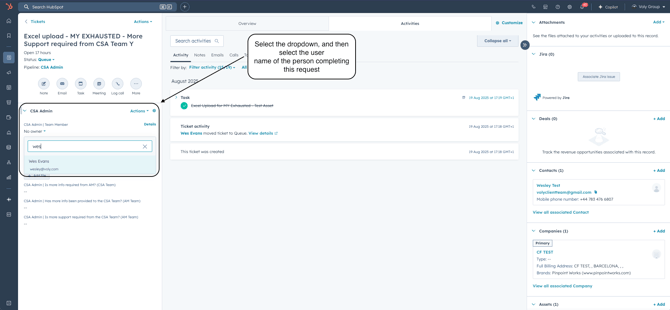
Once you have completed the request, you will need to "Complete" the TASK
You will also need to identify whether more information is required from the Ticket Owner, and update the property CSA Admin | Is more info required from AM? (CSA Team), where you will have the below options:
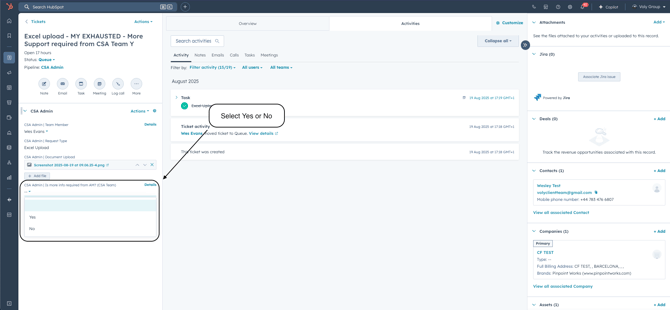
- Yes
a. If you select "Yes" within the CSA Admin | Is more info required from AM? (CSA Team) property. The Ticket will move into the "More Information Required" stage and the Ticket Owner will be notified that their support is required.
b. Once the Ticket Owner has offered their support, they will then need to update the property CSA Admin | Has more info been provided to the CSA Team? (AM Team) to Yes, which will move the ticket to "Processed / QA" stage.
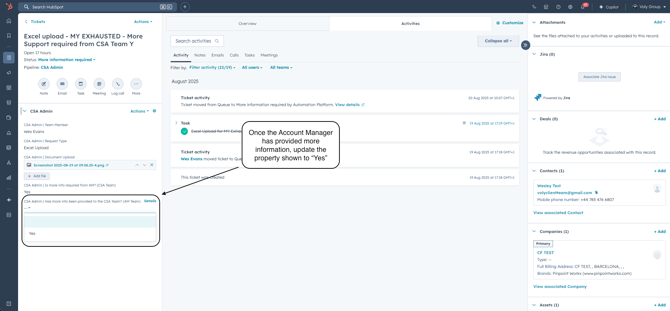
- No
a. If you select "No" within the CSA Admin | Is more info required from AM? (CSA Team) category. The Ticket will move into the "Processed / QA" stage
Once tickets enter this stage, the Ticket Owners will receive a notification, where they will be required to QA their request. Once QA'd they will need to identify whether more support is required from the CSA Admin Team by updating the property
CSA Admin | Is more support required from the CSA Team? (AM Team), where you will have the below options:
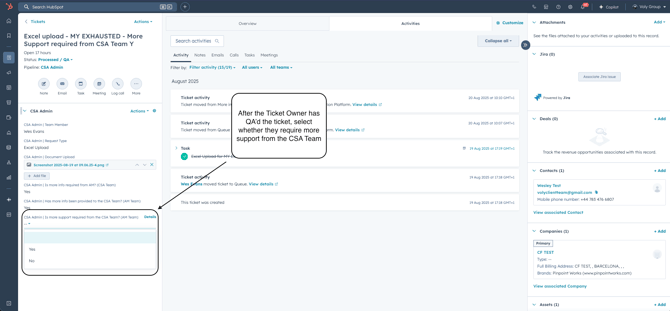
- Yes
a. If you select "Yes" within the CSA Admin | Is more support required from the CSA Team? (AM Team) property. A Task will be created within the CSA | Admin Task Queue and assigned to the CSA Admin | Team Member who initially supported the ticket and an internal email notification will be sent to the accountmanagers@voly.com email address.
b. Ticket Owner - leave notes within the Ticket surrounding your support.
c. CSA Admin Team - Once you have provided support please complete the TASK - No
If you select "No" within the CSA Admin | Is more support required from the CSA Team? (AM Team) property. The Ticket will move into the "Completed" stage
Workflow 2
Adding a CSA TicketRecord Created
Request Received
Step 1 - Add Ticket
Across all objects within HubSpot you are able to create tickets. You can create them whilst in other objects (example: from within a Client Hub record), where you will automatically associate the object from where the ticket was created, or from within the pipeline, where you will have to associate all other objects.a. from an associated object
b. from within a pipeline
When selecting add+ or creating a ticket, you will get a pop-up similar to the below:
Ticket Name - Please use the Naming Convention support document when entering your Ticket name (example: GA Upload - MY EXHAUSTED)
Pipeline - CSA Admin
Ticket status - Queue
CSA Admin | Request Type:
- Card Order
- Payment Requests
- Disputes
- Missing Payments
Associations - When creating the Ticket, please make sure you associate the below object types:
- Contact
- Product Subscription
- Client Hub (to be included once Client Hub is active)
- Asset
Once you have selected and associated the above, the Create button will appear, click create!
Step 2 - Record Creation
Once a record has been created, it will sit within the Queue stage on the Ticket - CSA Pipeline. An internal email notification will be sent to the accountmanagers@voly.com email address notifying them of the request type and a task will also be created within the CSA | Admin Task Queue:
Email notification
"Hello CSA Team,
You have received a new support ticket from {Ticket Owner}, requesting for a {Request Type} for {Asset Name}.
Please assign a CSA Team member to this ticket, by entering your name within the CSA Admin | Team Member property.
Need help? - link to this article!
Thanks"
Task Created:
Request received?
When you receive the Task and are ready to start the request, asign yourself to the Ticket by updating the CSA Admin | Team Member property.These requests require work to be completed elsewhere in HubSpot (e.g. Card Order Request). Therefore follow their individual process and once you have completed the request, you will need to "Complete" the Admin Ticket TASK
Once you have completed the above steps, theticket is moved to the Complete stage. The End.