- Browser Permissions for CONNECT
- Cloud - Integrating Hubspot to Connect
Further guides are available on our Sharepoint here
Browser Permissions for CONNECT
This document shows the browser permissions required for using CONNECT with Chrome and Microsoft Edge
Browser Compatibility
While Connect can run in Microsoft Edge and some other Browsers, if you experience problems, please revert to using Google Chrome as this is the browser of choice for Connect to perform optimally.
Web Application
CONNECT can run as a Web Application. You can create an application in Google Chrome. When you first run the application, please recheck the permissions.
Navigating to "Site Permissions" in the Connect App
Click the "three dots" menu in the top right of the Connect App Title bar, and click on "connect.cosoft.co.uk" next to "App Info"..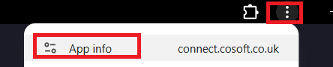
This will expand the site settings. Choose "Settings" at the bottom of the menu to get the permissions.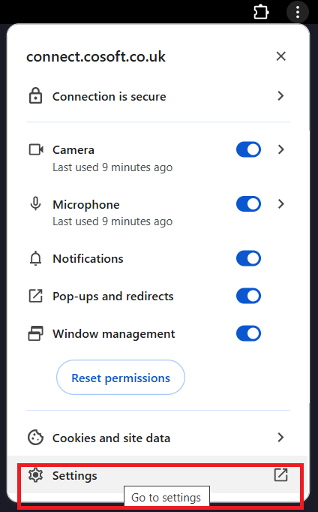
Navigate to "Site Permissions" in the Chrome Browser
To navigate to the browser permissions for Connect in Edge, navigate to the Connect Login
Click the icon to the left of the address to open up a summary of the security and permissions for the site. To edit the full permissions for CONNECT in Chrome, click on the Site Settings link.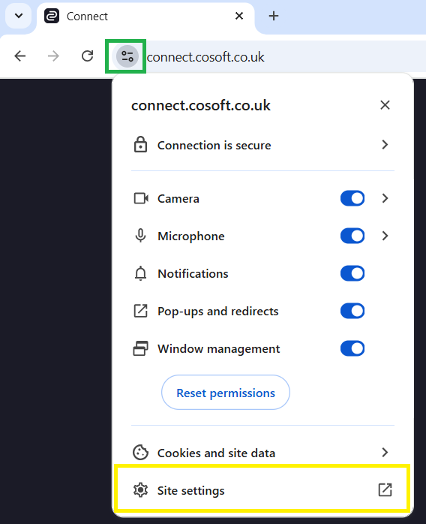
Note: If "Site Settings" is replaced by "Settings," then the application is installed already
Checking the Permissions for the Connect Site
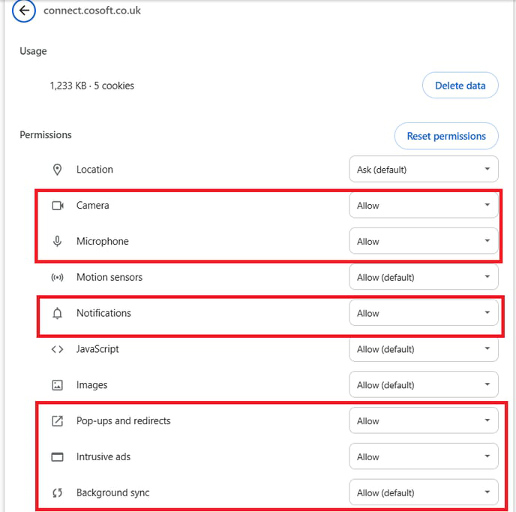
The Site Settings for Connect will be displayed. Adjust the settings to match the settings below.
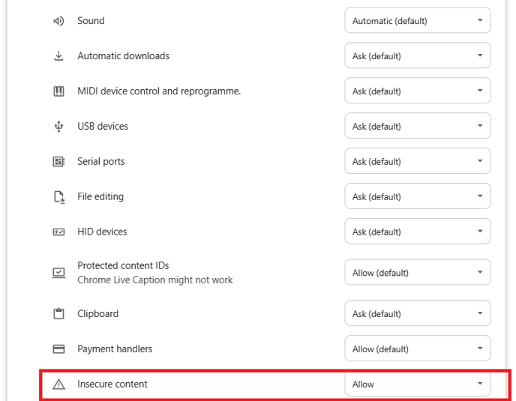
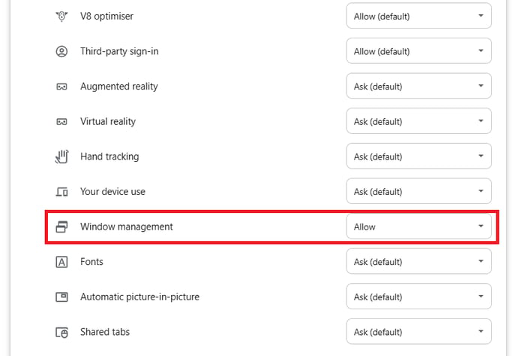
Windows Notification Settings (Windows 10/11)
Ensure Windows Notification System is enabled, and Chrome (and the Chrome Web App) can interact with Windows Notification.
In Windows, click on the Notification Centre icon in the bottom right of the screen: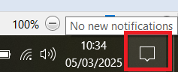
In the top right, click Manage Notifications; this will open the Notification and Actions Settings, ensure Notifications are enabled: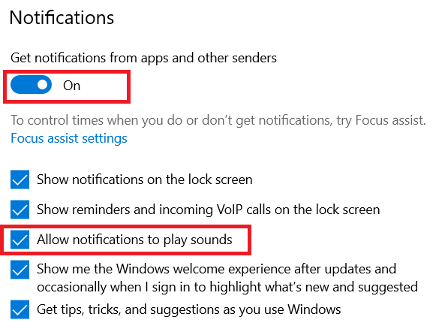
Scroll down the page to ensure Chrome is enabled:
Click on the entry to bring up the Action for the Notification:
Ensure Show Notification Banners are enabled: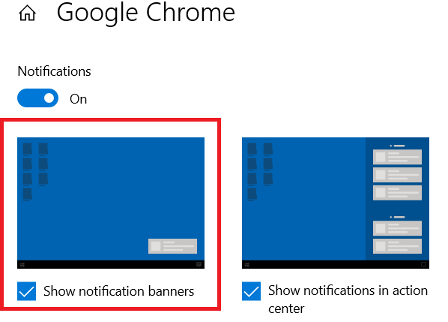
Installing the Connect Extension ''Click to Dial''
The Connect Extension for Chrome adds optional but helpful behaviour for Connect.
- Many CRMs require the Connect Extension to be installed.
- To allow bringing the Connect Window to the front when double clicking on an Incoming Call Notification.
- To allow Connect Application or Browser Window to "pop" to the front on an incoming call
- Add a dial icon next to text that looks like a telephone number on web pages...
To install the extension:
- In either a Connect Chrome Tab or the Connect App, click on the
 icon to open the online help.
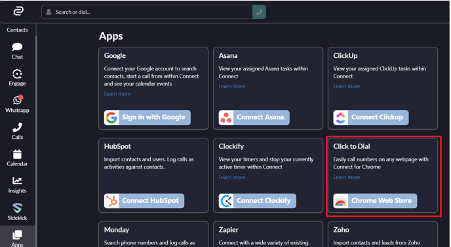
 - Navigate to "Click to Dial", under Apps.
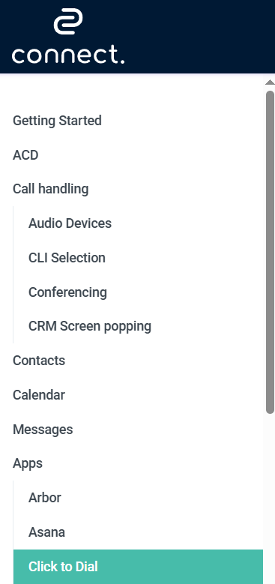
- Click on the "Chrome Webstore" link in the main body text.
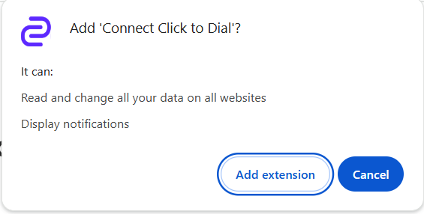
- This will open up the "Connect Click to Dial" Extension. Click on Add to Chrome to install.

- Confirm you wish to add the extension:
- Chrome will install the extension, and confirm it is installed:
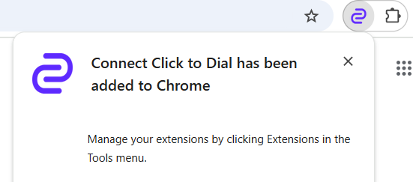
- Click on the
 icon. If you cannot see the
  icon, click on the extensions
  icon .
You can click on the drawing pin icon to display the Connect Extension in the Toolbar: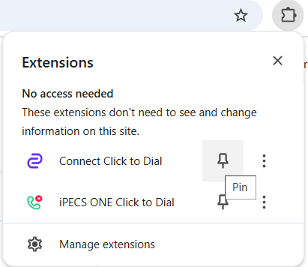
Click on the Connect Click to Dial text to display th options.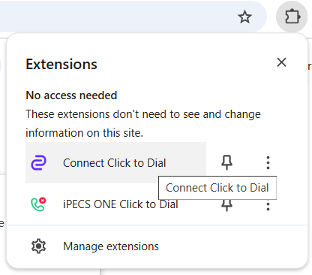
- We have 2 options on the Extension to consider.
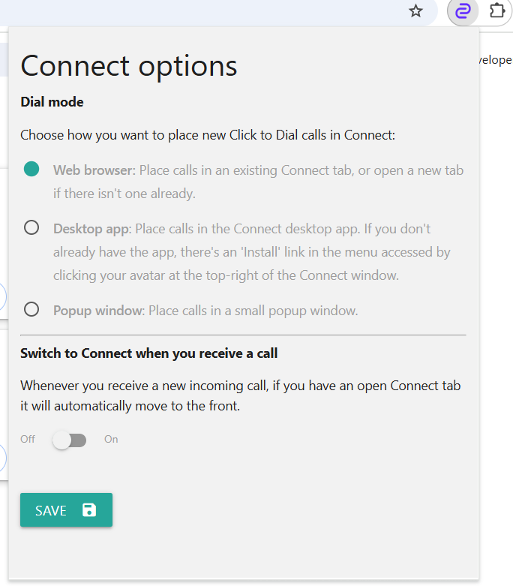
- DialMode - Where outbound calls are placed. You should use the Application if you have this installed.
- Switch to Connect when you receive a call/
- If you leave this disabled you can bring the Connect window to the front by double clicking an incoming call notification.
- If you enable this option Connect will pop to the front of the screen automatically when an incoming call rings CONNECT.
Cloud - Integrating Hubspot to Connect
HubSpot
The HubSpot app allows you to integrate your data with Connect.
Features
- Contact Sync
- Contact Searching
- Screen Popping
- Activity Logging
- Enhanced click-to-dial functionality with Google click-to-dial plugin
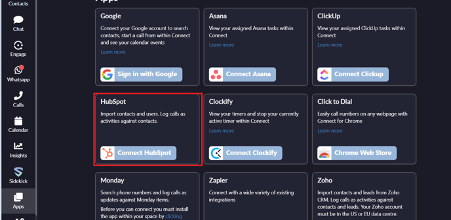
Firstly sign into Connect with https://connect.cosoft.co.uk and click on Apps
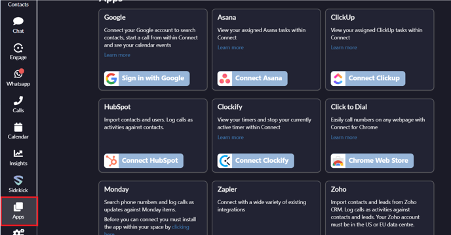
Click Connect HubSpot
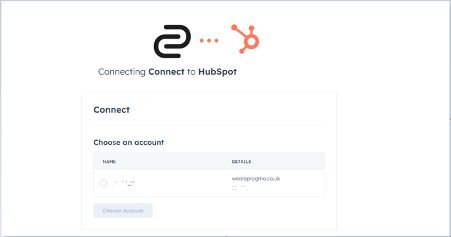
You will then need to sign into HubSpot
When completing this step, please use Voly Group 139785675
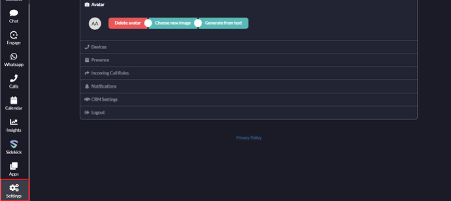
Click Settings on the bottom left.
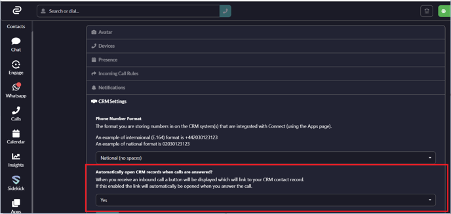
Enable Automatically Open CRM when calls are answered and save.
This Means when a call is answered the CRM record will pop up in the browser
To enable click to dial from HubSpot you will need to return to the App page of Connect and download Chrome Click to Dial.
Check in Chrome Extension that the Click to Dial extension has been added and make sure the slider is enabled.